Install
The @planetary/co-mment package ships one React component. React 18+ is a peer dependency; everything renders inside a Shadow DOM root, so your styles cannot leak into the widget and its styles cannot leak into your page.
npm install @planetary/co-mment
# or: pnpm add @planetary/co-mment / yarn add @planetary/co-mment
1. Add the component#
Mount <Comment /> once, near your app root, with the publishable key from your project settings. The key is safe to ship in client code: access is enforced by the origin allowlist, not by key secrecy.
Next.js (App Router)#
// app/layout.tsx
import { Comment } from "@planetary/co-mment";

export default function RootLayout({ children }: { children: React.ReactNode }) {
  return (
    <html lang="en">
      <body>
        {children}
        {process.env.NEXT_PUBLIC_VERCEL_ENV !== "production" && (
          <Comment projectKey="cmt_pk_..." />
        )}
      </body>
    </html>
  );
}
The component is client-side; Next.js handles that automatically because the package marks it "use client"-compatible. The NEXT_PUBLIC_VERCEL_ENV variable is "production" only on production deployments, so the widget appears on previews and local dev but never in production.
No bundler (script tag)#
For a site with no build step — plain HTML, Rails, Django, WordPress, a static export — one script tag is the whole install. This bundle has its own copy of React inside a closure, so it will not disturb a page that already has one, at any version.
<!-- index.html, before </body> -->
<script
  src="https://co-mment.com/script/latest.js"
  data-project-key="cmt_pk_..."
></script>
latest.js follows releases. To hold a version still, name it — pinned files never change and are cached for a year:
<script src="https://co-mment.com/script/v0.2.1.js" data-project-key="cmt_pk_..."></script>Leaving data-project-key off the tag stops it mounting on load, so you can call coMment.init() yourself. coMment.destroy() removes it again. The tag also takes data-position and data-api-url.
<script src="https://co-mment.com/script/latest.js"></script>
<script>
  // Only when you need to decide at runtime whether to load it at all.
  if (location.hostname !== "example.com") {
    coMment.init({ projectKey: "cmt_pk_...", position: "bottom-left" });
  }
</script>
It is bigger than the npm package — the npm build gets React from your app, this one brings its own — so prefer the component where you have a bundler.
Vite / plain React#
// src/App.tsx
import { Comment } from "@planetary/co-mment";

export default function App() {
  return (
    <>
      <main>{/* your app */}</main>
      {!import.meta.env.PROD && <Comment projectKey="cmt_pk_..." />}
    </>
  );
}
Vite exposes import.meta.env.PROD; any equivalent build-time flag works. The important part is that the check happens, not how you write it.
2. Keep it out of production#
The widget is meant for staging, preview, and development environments, not your production site. Two reasons:
- Comment screenshots can contain unreleased material. They are stored privately and served through short-lived signed URLs to project members, but the safest screenshot is the one never taken on production.
- Your visitors should not see a review toolbar.
Check your environment as shown above, or pass disabled to switch off the component (it renders nothing and makes no network calls).
3. Allowlist your origins#
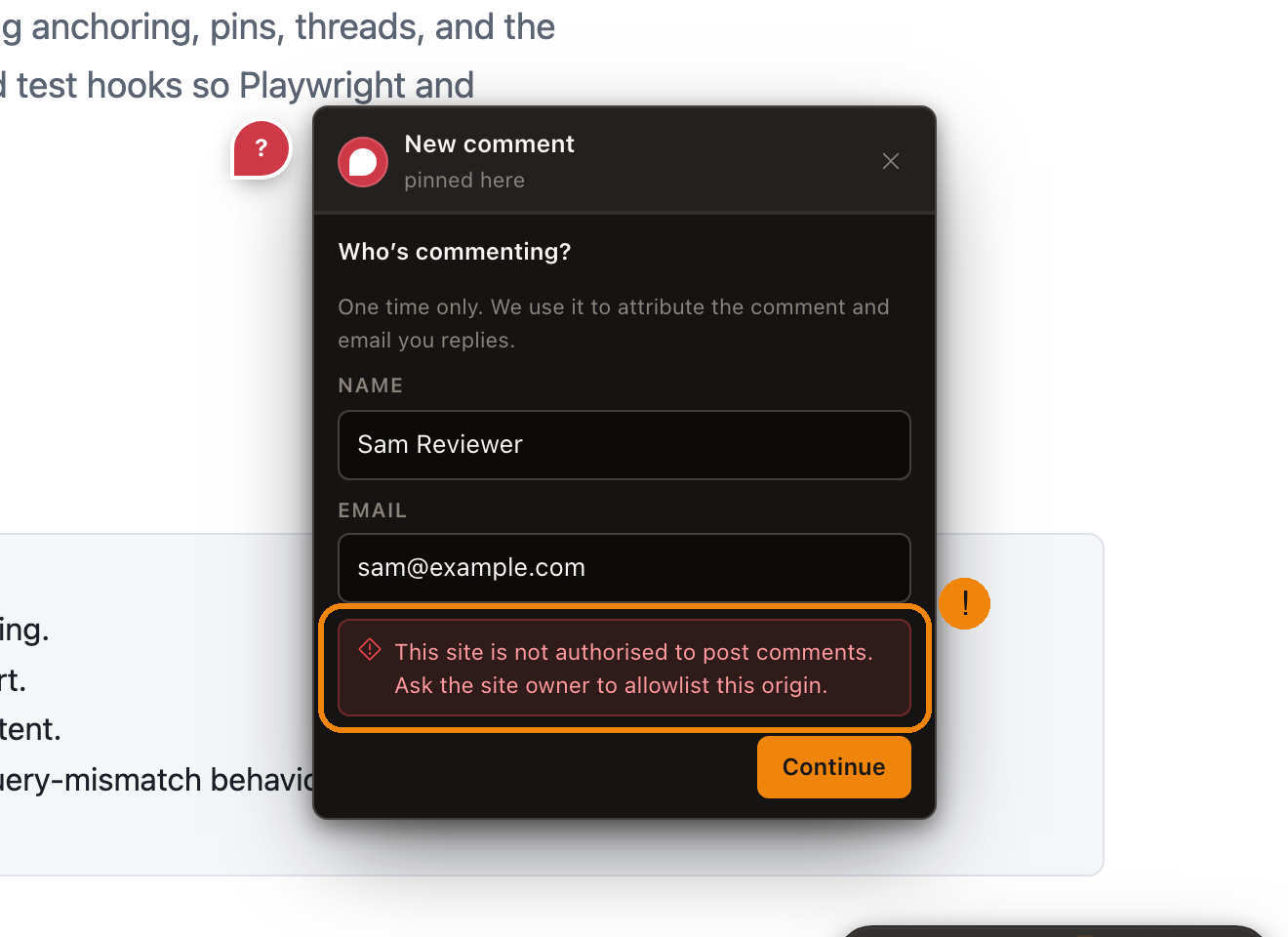
The widget API rejects requests from origins that are not on the project’s allowlist. In the dashboard project settings (or during onboarding), add every deployed origin where the widget should run. Give the scheme, host, and port with no path, for example https://staging.example.com.
localhost needs no entry: loopback origins are always allowed, on any port, because only software on your own machine can present one. Local dev works the moment the component mounts.
Preview deployments get a new hostname on every build, so an entry may put * inside a single host label: https://myapp-*.preview.example.com matches https://myapp-a1b2c3d4.preview.example.com. The wildcard stands for one or more letters, digits, or hyphens and never crosses a dot, so it can only widen the label you put it in.
A whole label cannot be just a wildcard (https://*.preview.example.com is refused). On a preview apex shared with other tenants that would let any of them use your publishable key, so keep a literal prefix that is yours.
Props#
<Comment
  projectKey="cmt_pk_..."          // required: your publishable key
  user={{ name, email }}           // optional: pre-fill commenter identity
  disabled={false}                 // hard off switch (renders nothing)
  position="bottom-right"          // "bottom-right" | "bottom-left" | "top-right" | "top-left"
  apiUrl="http://localhost:3000"   // only if you run the co-mment API yourself
/>| Prop | Type | Default | Description |
|---|---|---|---|
projectKey | string | required | Publishable project key (cmt_pk_...). |
user | { name: string; email: string } | none | Pre-fill commenter identity, e.g. from your app’s session. |
disabled | boolean | false | Hard off switch: renders nothing and makes no network calls. |
position | "bottom-right" | "bottom-left" | "top-right" | "top-left" | "bottom-right" | Floating toolbar placement. |
apiUrl | string | https://co-mment.com | API origin override. The hosted API by default, from every page including one you are serving locally — your project lives here whether or not your app does. Set it only if you run the co-mment API yourself. |
Verify it works#
- Start your dev server and open the app.
- A floating toolbar appears in the corner you configured.
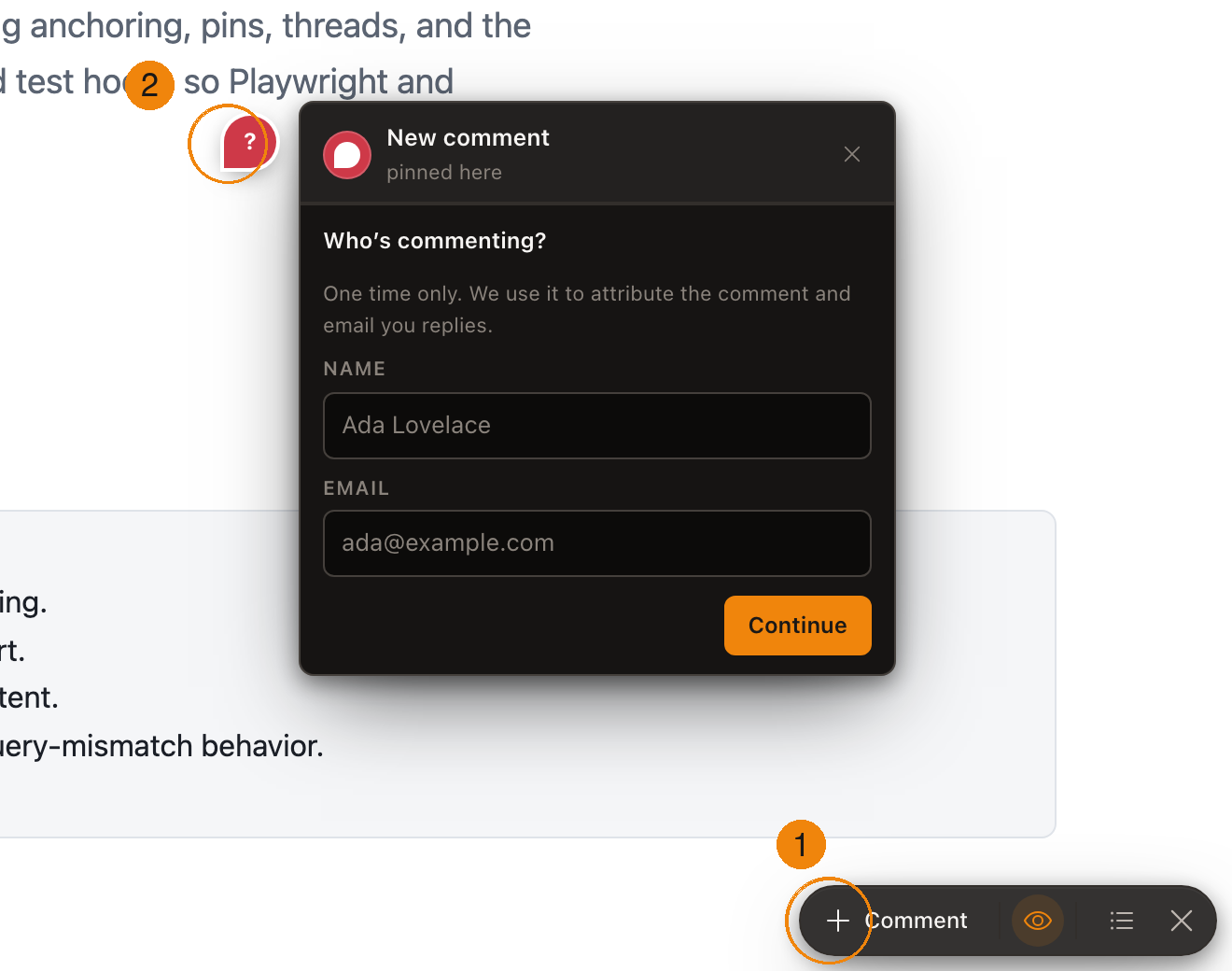
- Click +, click anywhere on the page, enter a name and email, and post a comment. A pin appears at the click point.
- If the toolbar renders but posting fails, the page’s origin is not on the allowlist (step 3 above). It looks like this: